
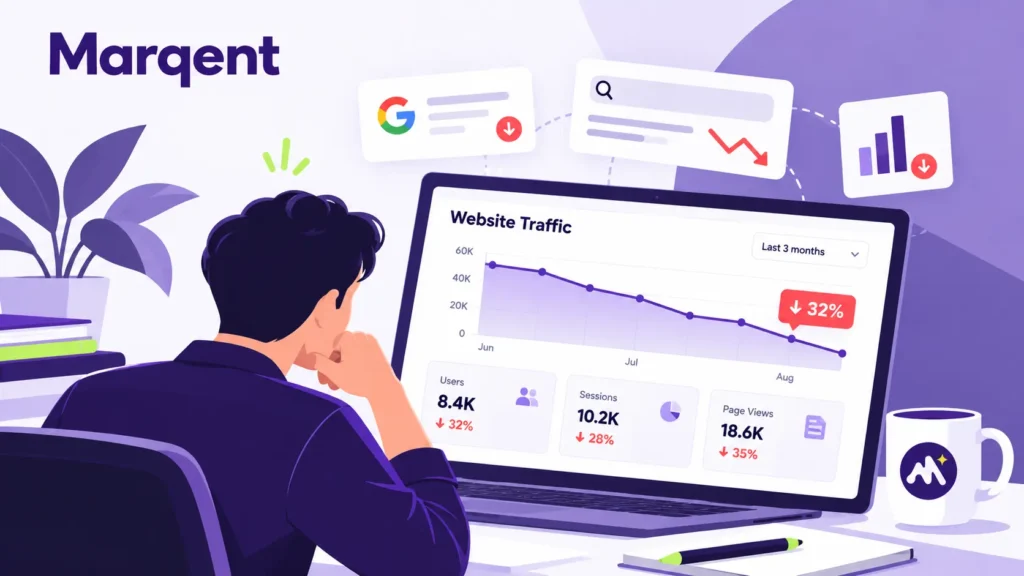
Two months ago, your website was bringing in visitors regularly. People were finding your pages through Google, reading your content, and perhaps even contacting your business.
Now, every time you check your analytics, the numbers seem a little lower.
First, traffic drops by 10%. Then 20%. By the end of the second month, you’re wondering whether something is seriously wrong with your website.
Should you publish more blogs? Update your keywords? Hire an SEO expert? Or wait for Google to sort things out?
Don’t make changes until you understand what caused the decline.
A website losing traffic doesn’t always mean its SEO is failing. Sometimes the problem is technical. Sometimes competitors are getting more attention. And sometimes fewer people are searching for what you offer.
Here’s how to find out what’s happening and what you can actually do about it.
First, Is Your Website Really Losing Traffic?
Before you investigate Google rankings or rewrite content, check whether your website is getting fewer visitors or whether your analytics are reporting different numbers.
These are not always the same problem.
Imagine your website received:
| Month | Organic Visits |
| June | 12000 |
| July | 10200 |
| August | 8400 |
But suppose your Google Search Console clicks have remained stable while Google Analytics shows a significant decline.
This could point to a tracking problem rather than a genuine loss of search traffic.
Start With Google Analytics 4
Open Google Analytics 4 (GA4) and navigate to Reports → Acquisition → Traffic acquisition.
Compare the last two complete months with the previous two months. Then review the same period last year if historical data is available.
Look at where your visitors are coming from:
- Organic Search: Visitors arriving through unpaid search results.
- Direct: Visits attributed to direct traffic.
- Referral: Visitors coming from other websites.
- Organic Social: Visitors arriving through unpaid social media activity.
- Paid Search: Visitors coming through paid search campaigns.
Example: Your overall traffic has fallen by 25%, but organic search visits are almost unchanged.
A closer look reveals that a paid advertising campaign ended six weeks ago.
In this situation, rewriting your website’s SEO content won’t solve the main problem. The decline is largely connected to advertising activity.
This is why identifying the affected traffic channel matters.
1. Check Google Search Console Before Changing Your SEO
If your organic traffic is declining, Google Search Console should be your next stop.
It tells you how your website performs in Google Search, including which pages appear in results and which searches bring visitors to your website.
Open Google Search Console → Performance → Search results.
Select a date comparison covering the traffic decline.
Focus on four measurements:
| Metric | What It Tells You |
| Total clicks | How many visits Google Search generated |
| Impressions | How often your website appeared in search results |
| Average CTR | The percentage of impressions that resulted in clicks |
| Average position | Your average ranking position across search appearances |
Don’t interpret these numbers individually.
Their relationship often tells you more than any single metric.
Example: Your Impressions Are Stable, but Clicks Are Falling
Suppose your data shows:
| Metric | Before | After |
| Impressions | 100,000 | 102,000 |
| Clicks | 5,000 | 3,000 |
| CTR | 5% | 2.94% |
Your website is still appearing in Google Search, but fewer people are clicking.
Possible explanations include less appealing search snippets, changing rankings within the results, or search features that answer questions before users visit a website.
Your website is still appearing in Google Search, but fewer people are clicking.
Possible explanations include less appealing search snippets, changing rankings within the results, or search features that answer questions before users visit a website.
What should you do?
Identify the queries and pages where CTR declined. Compare their rankings and review the current search results.
If your page title is unclear, improve it.
For example:
Old title: SEO Services | Digital Marketing Company
Improved title: SEO Services for Businesses That Need More Qualified Leads
The second title explains who the service is for and what the reader can expect.
A better title doesn’t guarantee higher clicks, but it gives searchers a clearer reason to consider your page.
Example: Both Impressions and Clicks Are Falling
This may indicate lost search visibility, lower search demand, indexing problems, or changes in the queries where your site appears.
Check whether the decline affects your entire website or only a few pages.
If just three important blogs have lost most of their traffic, your recovery plan should be different from one where hundreds of pages have disappeared from search results.
Google provides a useful guide for investigating these patterns in its documentation on debugging search traffic drops.
Find Out Which Pages Are Responsible for the Decline
Your website might contain 100 pages, but only 10 may have generated most of your organic traffic. If two of those pages lose their rankings, your entire website’s traffic graph can look alarming.
In Search Console, open the Pages tab and compare the affected period with the previous period. Sort the results by the largest loss of clicks.
For example:
| Page | Previous Clicks | Current Clicks | Loss |
| /blog/seo-checklist/ | 3,000 | 1,200 | 1,800 |
| /services/seo/ | 900 | 600 | 300 |
| /blog/local-seo/ | 700 | 650 | 50 |
The SEO checklist blog accounts for most of the lost clicks in this example.
Instead of making changes across the entire website, investigate that article first.
Ask yourself:
- Did its rankings decline for important keywords?
- Has the information become outdated?
- Are competing pages answering the question more effectively?
- Does the article still match what people are searching for?
- Did someone change the URL, page content, or indexing settings?
This approach helps you spend time where the potential recovery is greatest.
Check Whether a Google Update Affected Your Rankings
When website traffic starts declining, many people immediately blame a Google algorithm update.
Sometimes they’re right. But the timing alone isn’t enough to prove it.
Google makes changes to its search systems, including broad core updates that can affect how pages rank.
If your traffic decline began around a confirmed update, investigate whether your rankings changed during that period.
Use the official Google Search Status Dashboard to review update dates. Then compare those dates with your Search Console performance.
What if your traffic dropped after an update?
Don’t automatically rewrite every page.
Instead, compare the pages that lost visibility with the pages now performing better for the same searches.
For example, imagine your article targets:
How much does SEO cost for a small business?
Your article provides a general explanation of SEO pricing.
Meanwhile, competing pages include actual pricing examples, cost breakdowns, project scopes, and explanations of what affects the final price.
Those pages may be more useful to someone researching SEO costs.
A sensible improvement would be to add:
- Sample pricing scenarios with clearly stated assumptions.
- Examples of what different service packages include.
- Factors that increase or reduce SEO costs.
- Questions businesses should ask before choosing an SEO provider.
The goal isn’t to make your article longer. It’s to make the answer more complete and useful.
Google’s core update guidance also advises against making unnecessary radical changes to pages that are already performing reasonably well.
Investigate Technical SEO Problems That Could Be Blocking Google
Sometimes your content is perfectly relevant, but Google cannot access or index it properly.
Technical SEO issues can develop after a website redesign, plugin update, migration, or changes to server settings. And not every technical problem causes an immediate traffic collapse.
Some issues affect individual pages gradually, making the decline harder to notice.
Check These Technical Problems
Accidental noindex tags
A noindex directive tells search engines not to include a page in their search results.
Example: Your developer updates a service page but accidentally leaves a noindex directive on it.
The page may eventually disappear from Google, even though visitors can still open it normally.
Incorrect redirects
Suppose your original page was:
example.com/seo-services/
You changed it to:
example.com/search-engine-optimization/
If the original URL doesn’t redirect correctly, visitors and search engines following the old link may encounter an error.
Broken pages and server errors
A 404 error means the requested page wasn’t found. A 5xx error generally indicates a server-side problem.
If important pages consistently return errors, search engines may have trouble accessing them.
Incorrect canonical tags.
A canonical tag indicates which URL you consider the preferred version of a page.
If an important service page points to an unrelated URL as its canonical, Google may select another page for indexing.
Robots.txt restrictions
Your robots.txt file can restrict search engine crawling. An incorrect rule could block access to sections of your website that should be available to Google.
How to Check
Open Google Search Console and review:
- Page indexing reports.
- URL Inspection for affected pages.
- Crawl statistics and server errors.
- Manual Actions and Security Issues reports.
For an affected URL, confirm that it is accessible, indexable, and using the intended canonical URL.
Important: Don’t remove every noindex tag or redirect you find. Some are intentional. The goal is to identify settings that conflict with how your website is supposed to work.
Review Whether Your Content Still Matches Search Intent
A page can lose traffic without having any technical problems.
Sometimes the information is outdated. Sometimes the search results have changed.
Sometimes another website simply answers the user’s question better.
Let’s consider a real-world type of situation.
You published an article titled:
Best CRM Software for Small Businesses
When you wrote it, readers primarily wanted a list of available CRM tools.
Now, the pages competing for that search may offer pricing comparisons, feature tables, limitations, screenshots, and recommendations for different business sizes.
If your article still contains a short list with generic descriptions, it may no longer satisfy readers as well.
How Should You Improve It?
Start by searching your main keyword and examining the pages currently appearing prominently.
Look at what they cover, but don’t copy their structure blindly.
Identify what readers still need help understanding.
For the CRM example, a stronger article could include:
- Which CRM is suitable for a five-person sales team?
- Which tools offer useful free plans?
- What limitations appear when a business grows?
- How difficult is it to migrate customer data?
- What should a business test before purchasing?
Then add firsthand observations, verified product information, or clearly explained examples wherever possible.
A useful rule: Don’t update content just to make it look fresh. Update it because you have something more helpful to say.
Check Whether Search Demand Has Changed
Not every decline is caused by your website.
Sometimes fewer people are searching for a topic.
Consider a business selling festival decorations.
Search interest may increase before major festivals and decline afterward.
The business could maintain its rankings while receiving fewer visitors.
This is where Google Trends becomes useful.
Enter the keywords that previously generated traffic and compare search interest over time.
Example: A Seasonal Decline
Suppose a travel website receives substantial traffic from searches related to summer holiday destinations.
Traffic rises during the holiday planning season and falls after it ends.
If the same pattern appeared last year, the decline may be seasonal rather than evidence of a new SEO problem.
However, if search interest remains steady while your website loses rankings, you should investigate your own visibility more closely.
Don’t compare only the last two months.
Where possible, review at least 12 months of historical performance to understand normal fluctuations.
Find Out Whether Competitors Are Taking Your Traffic
Search results aren’t static.
New websites appear, established competitors update their content, and businesses invest in improving pages that target the same customers.
You may still rank for your important keywords, but lower than you did before.
Imagine your service page previously ranked third for SEO agency for ecommerce businesses.
Now it ranks eighth.
Your page hasn’t disappeared, but the lower position could substantially reduce clicks.
What Should You Compare?
Review the pages now ranking above yours.
Look at their service explanations, examples, pricing transparency, supporting evidence, FAQs, and overall usefulness.
Suppose a competing agency explains how its ecommerce SEO process works, which platforms it supports, and how it measures commercial results.
Your page, meanwhile, only says:
We provide result-driven SEO solutions for all businesses.
That statement doesn’t give potential customers much information.
You could improve your page by explaining your actual services, supported platforms, reporting approach, and the types of problems your team can solve.
Don’t invent case studies or performance figures. Use genuine examples and evidence where available.
Check Whether Your Website Changes Coincided With the Traffic Drop
Think about what happened to your website before the decline started.
Did you redesign your homepage? Change URLs? Remove older blogs? Update navigation? Switch CMS platforms?
Even improvements made with good intentions can create unexpected SEO problems.
For example, a company redesigns its website and removes several older informational pages because they don’t match the new design.
Unfortunately, those pages were bringing in hundreds of organic visitors every month.
After the redesign, traffic begins falling.
The problem isn’t necessarily Google’s algorithm. The business may have removed content that previously attracted search visitors.
What Should You Do?
Compare the website before and after the changes.
Review the removed URLs, redirects, internal links, titles, page content, and indexing status.
If valuable content was removed without a suitable replacement, consider restoring it or consolidating it into an appropriate page.
For substantial site migrations, investigate URL mapping and redirect implementation carefully before making further changes.
Prioritize Recovery Instead of Fixing Everything at Once
Once you’ve identified the likely causes, don’t try to change every page on your website.
Prioritize issues based on their impact and the evidence you have.
Here’s a practical framework:
| Finding | Recommended Action | Priority |
| Important pages accidentally noindexed | Correct indexing directives | Critical |
| High-traffic URLs returning errors | Restore pages or fix routing | Critical |
| Major ranking losses on key pages | Review intent, content, and competitors | High |
| Declining CTR with stable visibility | Review titles, snippets and SERP changes | Medium |
| Outdated articles losing traffic | Refresh information and examples | Medium |
| Seasonal search demand decline | Adjust forecasts and content planning | Monitor |
These priorities are general guidance. The actual order should depend on your website and business goals.
For example, restoring an inaccessible service page that generates qualified leads may matter more than updating a blog that previously attracted thousands of visitors who rarely became customers.
Recovering traffic is useful. Recovering the right traffic is more valuable.
Follow a 30-Day Website Traffic Recovery Plan
A structured plan helps you avoid random changes and measure what actually works.
Days 1–5: Understand the Decline
Review GA4 and Search Console data.
Identify which channels, pages, queries, countries, and devices have lost traffic.
Check whether the decline is consistent, sudden, seasonal, or limited to particular pages.
Example deliverable: A spreadsheet showing the 20 pages with the largest organic click losses, their affected keywords, and the likely reasons.
Days 6–10: Investigate Technical Issues
Check indexing, redirects, canonical tags, server errors, and recent website changes.
Fix confirmed technical problems that prevent important pages from appearing in search.
Example deliverable: A technical issue tracker with affected URLs, issue descriptions, owners, and resolution status.
Days 11–20: Improve Priority Pages
Select the pages with the strongest combination of traffic potential and business value.
Review their content against current search intent.
Update outdated facts, strengthen weak explanations, improve internal links, and add useful examples.
Example deliverable: Five priority pages improved based on documented performance problems, rather than arbitrary content rewriting.
Days 21–30: Measure and Refine
Review the corrected pages in Search Console.
Track indexing status, impressions, clicks, rankings, and relevant conversions.
Record what changed and when.
Example deliverable: A before-and-after performance report showing early indicators and outstanding issues.
Remember, 30 days is a useful period for diagnosing problems and implementing improvements. It is not a guaranteed recovery timeline.
Some technical corrections may be reflected relatively quickly, while broader ranking changes can take weeks or months.
How Long Does It Take to Recover Lost Website Traffic?
There isn’t one recovery timeline that applies to every website.
If your analytics tracking was broken, correcting it may restore accurate reporting without changing your search rankings.
If important pages were accidentally blocked from indexing, recovery depends partly on when Google recrawls and processes the corrected pages.
If competitors are outperforming your content, improvements may take longer to influence rankings.
And if fewer people are searching for your products, there may be no technical issue to fix at all.
That’s why promising to recover all lost traffic within 15 or 30 days isn’t credible without first investigating the website.
Focus on whether your changes are addressing the underlying problem.
What Should You Avoid When Website Traffic Is Falling?
When traffic declines, it’s tempting to do something immediately.
But some reactions create more problems than they solve.
Publishing dozens of new blogs: If your existing pages are inaccessible or losing rankings, publishing more content may not address the problem.
Changing all your keywords: Replacing keywords without understanding search intent can weaken pages that were previously relevant.
Deleting underperforming content: A page with little traffic may still support important topics, attract qualified leads, or help visitors understand your services.
Buying backlinks to recover rankings: Paid links intended to manipulate rankings can violate Google’s spam policies and introduce additional risk.
Changing your website design immediately: A redesign won’t necessarily solve an organic visibility problem and can introduce new technical issues.
Make changes because the evidence supports them, not because your traffic graph looks worrying.